Exploring the API
In this section, we will explore the API using OpenAPI and Swagger UI. OpenAPI is a specification for building APIs, while Swagger UI is a tool that allows you to visualize and interact with your API's endpoints.
OpenAPI and Swagger UI
OpenAPI is a specification for building APIs that includes support for defining security schemes and requirements. Swagger UI is a tool that allows you to visualize and interact with your API's endpoints. It provides an interactive interface where you can test your API's functionality and see the responses in real-time.
In our implementation, we have defined an OAuth2 security scheme in the OpenAPI documentation, which allows us to specify the authentication mechanism for our API endpoints.
Open the Swagger interface
Open a browser and enter the URL to navigate to the istSOS4 baseurl with the /docs location:
https://localhost:8018/istsos4/v1.1/docs or https://istsos.org/v4/v1.1/docs
and check the top-right corner of the page. You should see a "Authorize" button, which indicates that the OAuth2 security scheme is defined and available for use.
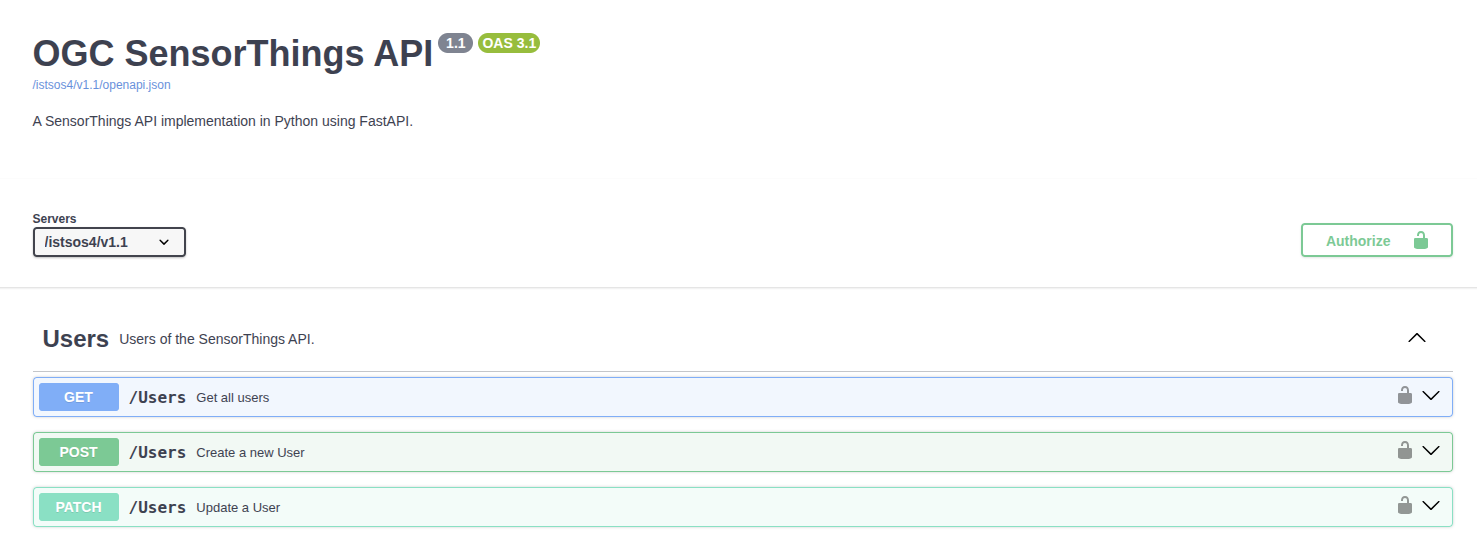
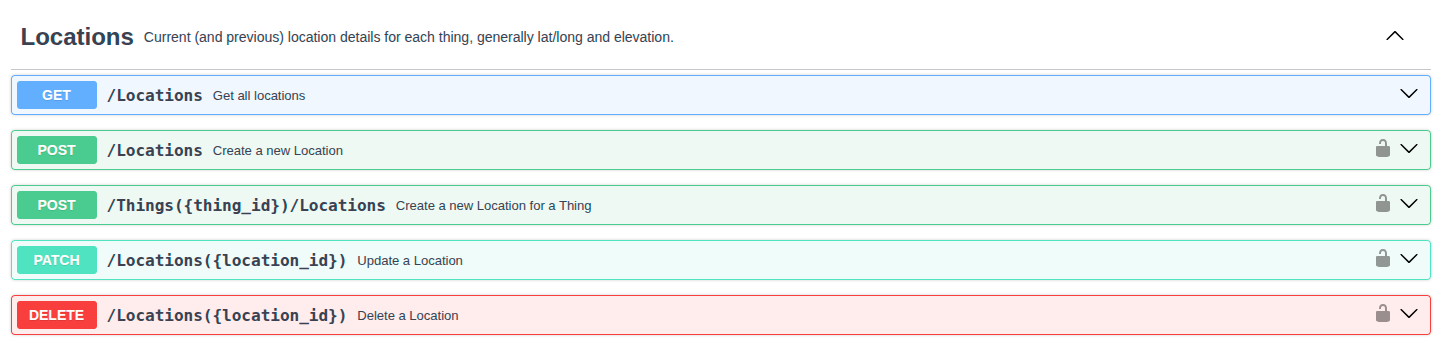
Since we have enabled the anonymous viewer in our configuration, you can access the API endpoints for reading without providing any credentials. This means that most of the GET endpoints are visible in the Swagger UI without the "Authorize" button () and are accessible without needing to authenticate.
Explore the offered Things
In the Swagger UI, you can see a list of available API endpoints. Look for the endpoints related to "Things" and see the available operations.
You can click the GET /Things endpoint to retrieve a list of all Things in the system. Since the anonymous viewer is enabled, you should be able to access this endpoint without providing any credentials just by clicking the Try it out button and then Execute.
This will send a request to the API and display the response, which should include a list of Things in the system.
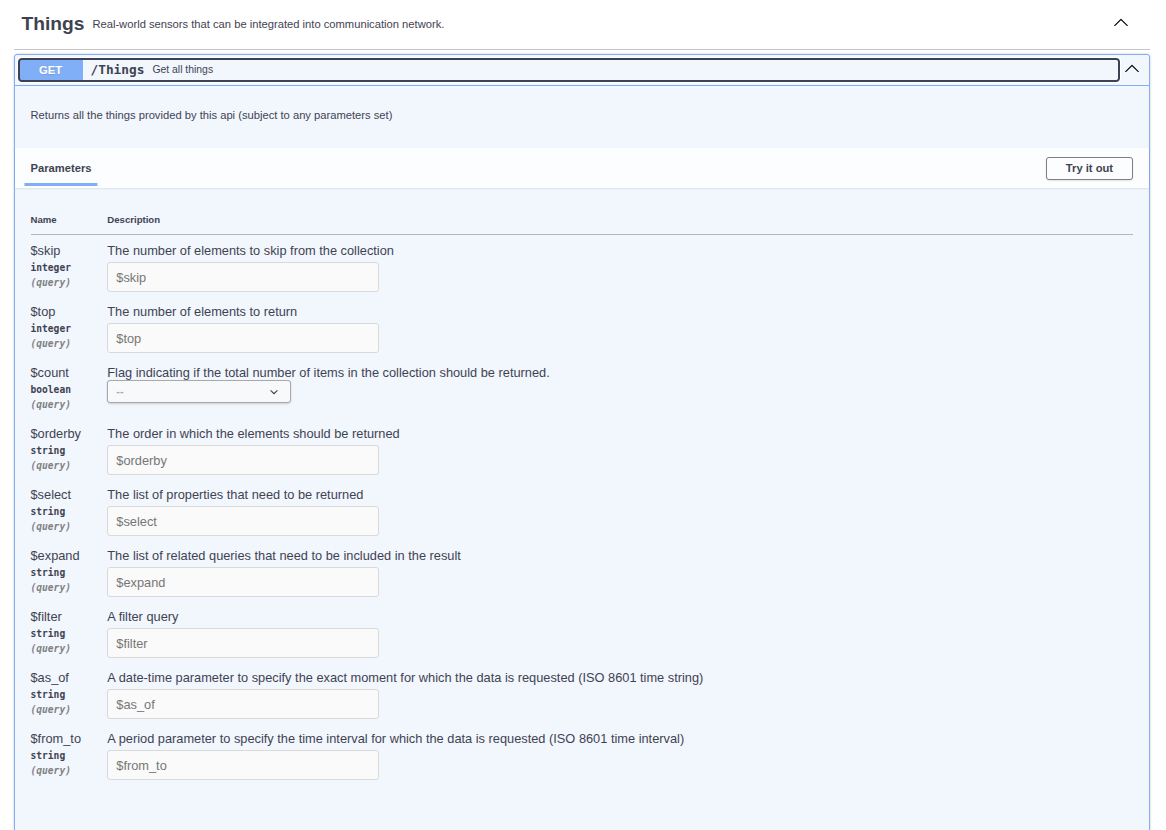
You can try to use the parameters, as defined in the OData specification, for example:
- setting
$top=1to limit the number of results returned. - setting
$filter=name eq 'SON'to filter the results by a specific name. - setting
$orderby=name descto order the results by name in descending order. - setting
$select=name,properties/keywordsto select only specific properties of the Things. - setting
$top=1&$expand=Locationsto include related Locations in the response. - setting
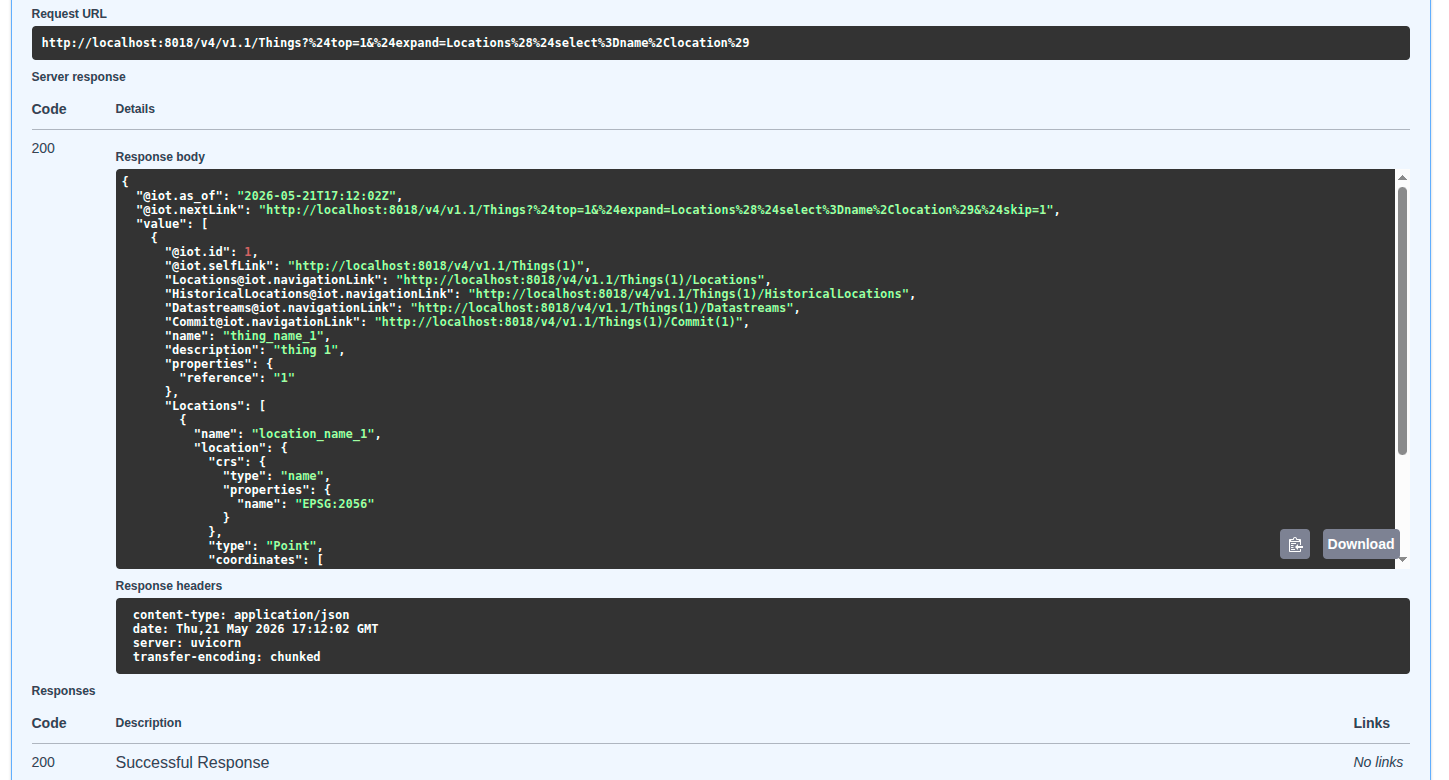
$top=1&$expand=Locations($select=name,location)to include related Locations in the response with specific properties.
This allow you to see how the API handles query parameters and how it affects the response.